Navigation
Menu Bar

From left to right:
- Home (logo): takes you back to the Welcome screen.
- Settings: this is where you can change – activity box background colour, size of activity box/text (via zoom slide), password. Colour and zoom settings will stick once you log out and back in again.
- Screen Tutor: click to play the screen tutor for the activity on the screen.
- Library: Tutor’s Materials storage.
- Help: Access to Help for Tutors, Technicians.
Welcome screen
Access
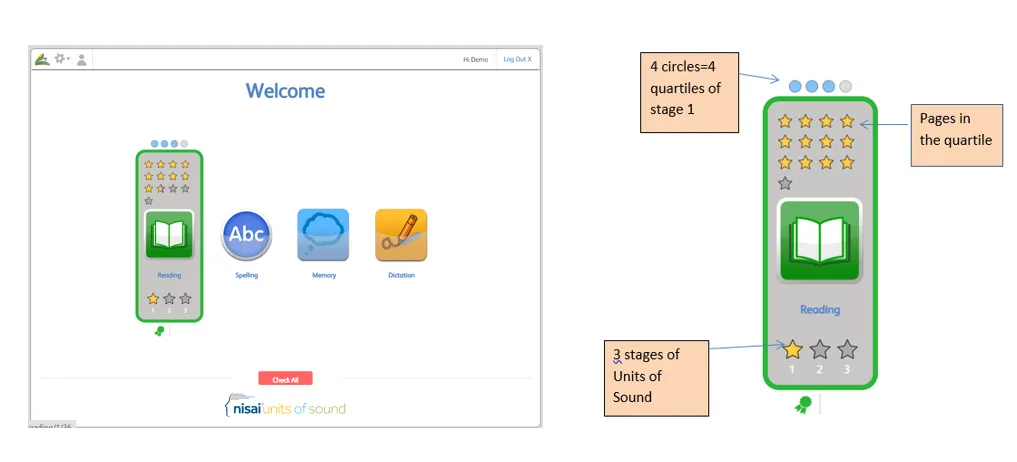
This is the main landing page for Units of Sound where students access their program. As you mouse over the skills areas they ‘grow’ into the skills bars giving details of where the student is within the program.
- Click on the Reading / Spelling / Memory / Dictation icons to access those programs as set for the student.
- Click on the student records rosette for more detail on progress.
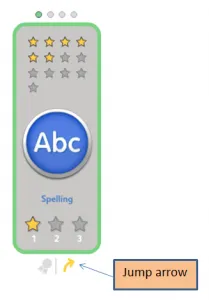
- Note that when you log in as a tutor the Welcome screen has a ‘jump’ arrow that allows the tutor to get to any stage and page – this can be useful for demonstration purposes.
Content
There are 52 “pages” in Stage 1; 48 in Stage 2; 48 in Stage 3.
Within each skill area there are a number of different activities:
- Reading: Word blocks, Check Words, Check Sounds, Sentences, Passages, Quiz Questions.
- Spelling: Word Blocks, Check Words, Check Spelling.
- Memory: Speed Reading, Memory Phrases.
- Dictation: Sentences.
Student Records
Student Records is where the student can see the full stage and their overall progress. The Records are accessed via the rosette below each skills bar.

Reading Records
Hovering over a gold star brings up the page, date and time taken.
- The pink star represents a completed Reading Check set.
- A gold star with a white outline represents a Reading Check that is due.
- A white star indicates the Reading Checks that are in the pipeline.

Spelling, Memory, Dictation Records
Hovering over a gold star reveals the page, date, time taken and score.

Program screen
Stars
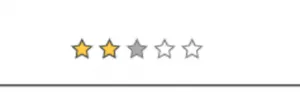
Stars show the number of tasks to be completed within the activity.
- In Reading:
- Gold star: task has been completed.
- Empty star: task has not been accessed.
- In Spelling, Memory and Dictation:
- Gold star: answer is correct.
- Grey star: answer is wrong.
- Empty star: task has not been accessed.
Pencils
The pencils show the type of activity – Explore, Practice or Challenge.
- Explore (one pencil): The student is being introduced to the activity and there is support information available.
- Practice (two pencils): The student is carrying out an activity within a secure framework.
- Challenge (three pencils): The student has to apply knowledge and has only one go at getting it right.

Circles
- Circles: number of activities on the page.
- Filled in circles: how many activities you have completed so far.
