Technical Guide
Access Check List
Before using Units of Sound and before each lesson you should quickly run the access checks detailed on the checklist. The checks must be run using the same computer login as used by a student to check the actual permissions experienced by a student. These checks only take a few moments but will help to ensure a more reliable experience.
If any of the checks fail, do not attempt to use Units of Sound on that computer, you may either move to a new computer and run the tests again. If they fail you must refer the problem to your technicians.
Download the checklist from this link AccessChecklist.pdf
Flash Player Check
Units of Sound requires Adobe Flash player. You can check if this is installed by visiting the following page: http://helpx.adobe.com/flash-player.html .
This page will check if you have Flash player installed and help you download and install if it is not. The Flash player installer can also be downloaded directly from http://get.adobe.com/flashplayer .
Information regarding the deployment of Flash player acoss all of your computers is available from Adobe. http://www.adobe.com/devnet/flashplayer/enterprise_deployment.html .
Setting Flash Player
Once Flash Player is installed, the permissions should be set to allow Units of Sound to use the Microphone. If this is not done a permission request will pop up every time Units of Sound attempts to use the microphone to record.
More information regarding these settings is available from Adobe: http://www.macromedia.com/support/documentation/en/flashplayer/help/help09.html .
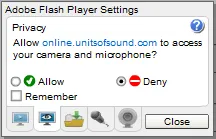
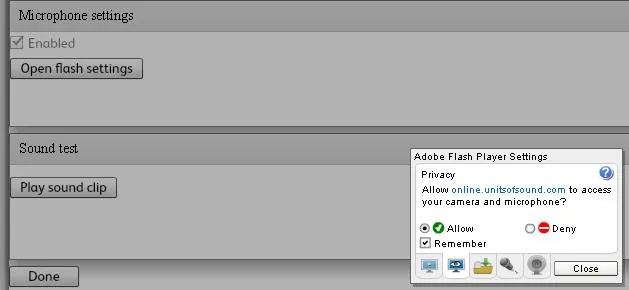
It is preferable to give permission before using Units of Sound. Access online.unitsofsound.com and right click (windows), control-click (Macintosh) anywhere within the border of the Units of Sound programme. Then choose settings from the displayed menu. Click the second tab to access the privacy settings as shown above and click allow and remember.
Note: This is a general privacy setting for Flash Player. Units of Sound only accesses the microphone during the Reading lessons. Units of Sound does not access a camera even if one is connected.
Alternatively, you need administrator permissions on the computer, the permission for online.unitsofsound.net can be added in the Flash Player control panel.
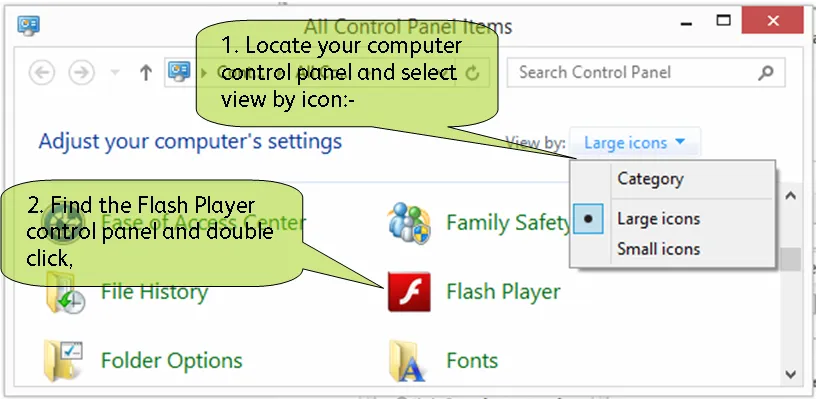
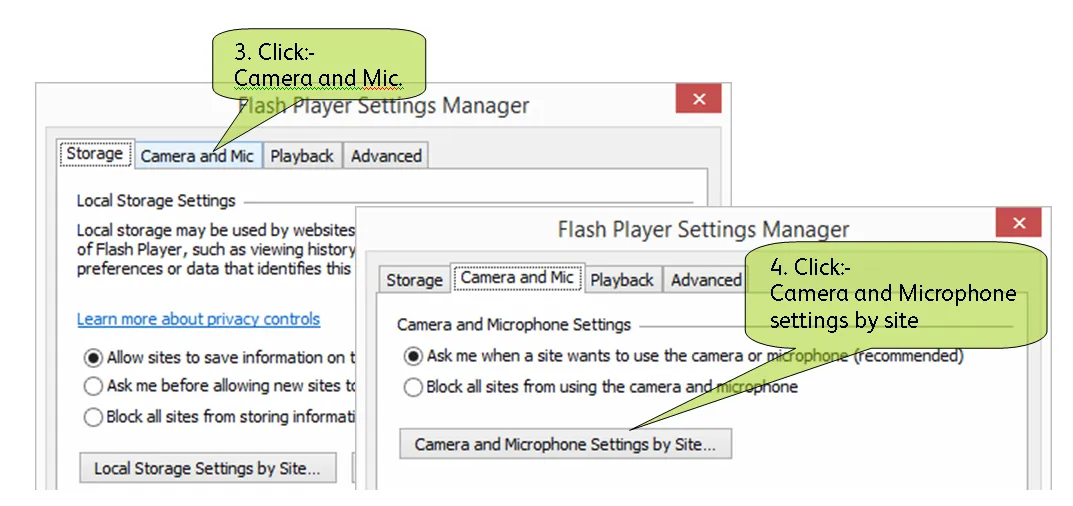
Then click the Camera and Microphone tab, followed by the Camera and Microphone settings by site button.
Click the add button.
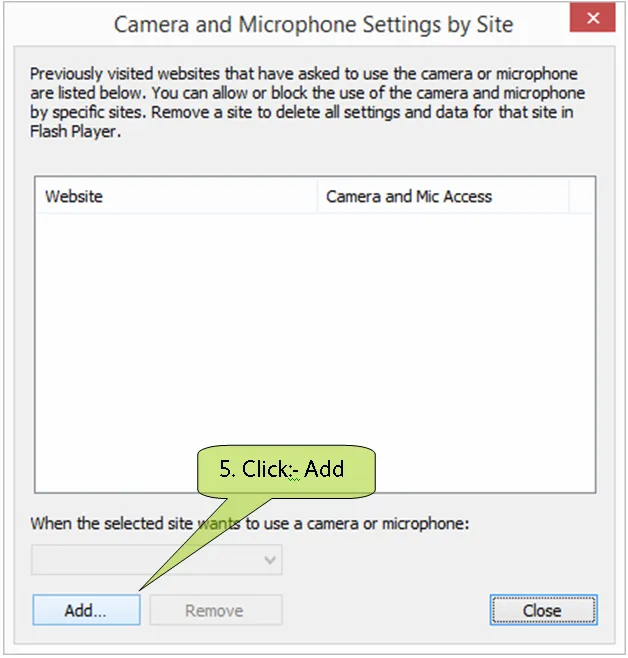
Now add http://online.unitsofsound.com and set the permissions to Allow.
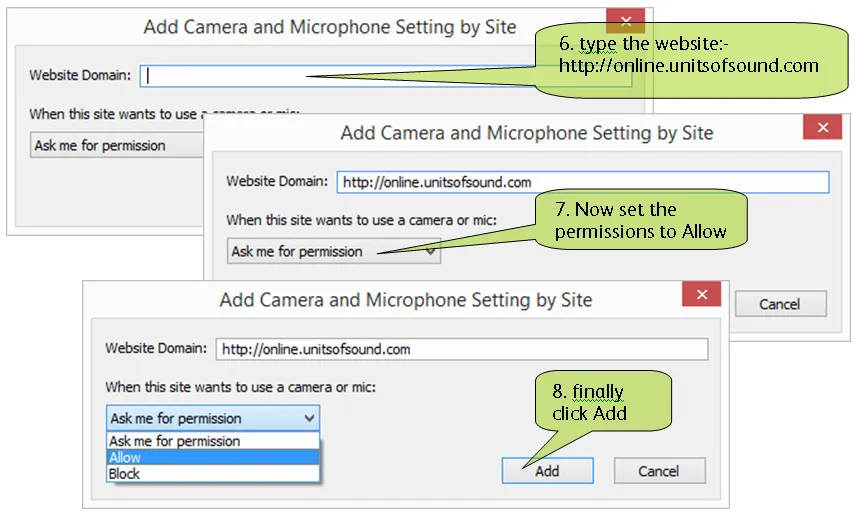
Flash Player Global Setting Tool
In addition to the local Flash Player control panel, Adobe also provide an online tool to view and set some global parameters.
Access to the camera can only be set by visiting online.unitsofsound.com and clicking the allow and remember. To check if Flash Player has remembered this setting the global setting tool can be used.
http://www.macromedia.com/support/documentation/en/flashplayer/help/settings_manager06.html
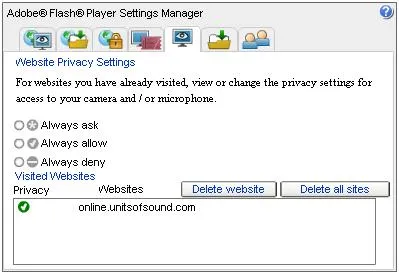
online.unitsofsound.com should then be shown as above with a green tick. If it is not shown in your settings, return to online.unitsofsound.com, click on the cogs at the bottom right of the logon screen, click the button Open flash settings and then click Allow and remember and then close.
Flash Player Global Deployment
To centrally distribute and control Adobe Flash Player, please see the Adobe Flash Player deployment guide: http://www.images.adobe.com/www.adobe.com/content/dam/Adobe/en/devnet/flashplayer/pdfs/flash_player_16_0_admin_guide.pdf
The guide defines how to distribute Flash Player and the settings in the file mms.cfg that can control the behavior of Flash.
Windows (Default installation):
- 32-bit Windows:
C:/WINDOWS/System32/Macromed/Flash - 64-bit Windows:
C:/WINDOWS/SysWow64/Macromed/Flash - Macintosh:
/Library/Application Support/Macromedia
More details can be found on page 27 and 28 regarding access to the microphone and camera. Page 24 details the above locations.
Add the following line to the mms.cfg file and then distribute. AVHardwareEnabledDomain=online.unitsofsound.com
This does not prevent the pop from appearing so teachers and students must initially click the allow and remember, if this is not set they still get the pop up even though this setting in the mms.cfg will override it.
More information can found from the Adobe website. http://www.adobe.com/devnet/flashplayer/articles/flash_player_admin_guide.html
Microphone check
Control of the Microphone is outside of Units of Sound. Please make sure that your Microphone is enabled and working before using Units of Sound.
Control for the Microphone to mute / unmute and to set the levels can usually be accessed from the bottom right of your screen.
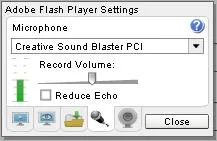
Additional controls are also built into Flash Player which can be accessed by right clicking (Windows), control-click (Macintosh) on Units of Sound and choosing settings. Detailed information regarding this setting is available from Adobe. http://www.macromedia.com/support/documentation/en/flashplayer/help/help03.html
Accessing the Flash Player settings is a quick way to check of the microphone is configured and operating. If the configuration is correct the green bars will move up and down as you talk into the microphone.
Network settings
In order for Units of Sound to operate in a satisfactory way it is important to ensure that the website link used to provide the service is set to be unfiltered and trusted (Whitelisted). This must be at the level of computer logins used by students.
Units of Sound downloads and plays mp3 sound clips to the students, therefore to operate correctly the web filters must also be configured to allow mp3 files.
It may be necessary to set this at a global allow if it is not possible to allow mp3 files from specifically online.unitsofsound.com.
Submit a help request
If you are really stuck and haven’t found the answer to your technical issue, you can send a message to the Units of Sound team via the messaging icon at the bottom right of the screen when logged in as tutor.
Alternatively use the contact form on the main website https://www.unitsofsound.com/contact-us/ .